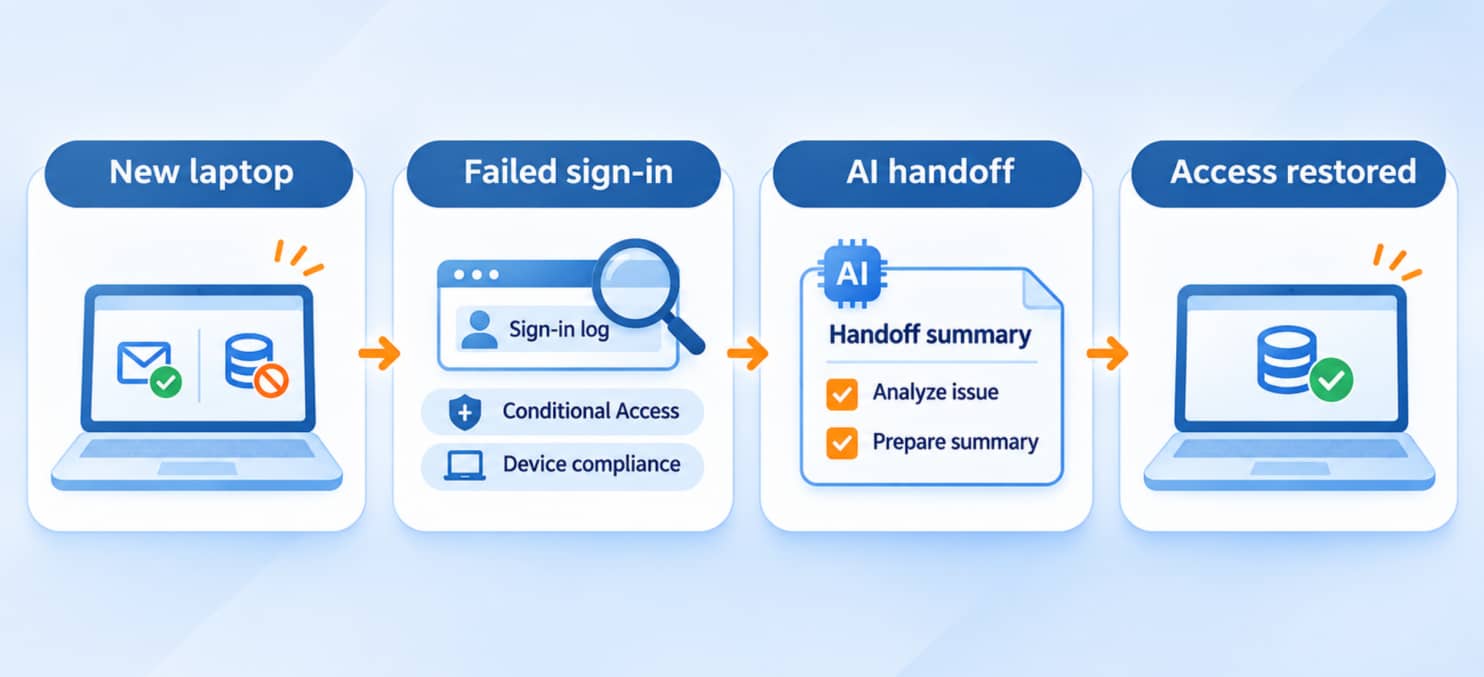
If you’re evaluating AI infrastructure for employee IT support, start with this ticket. Can the service desk find out why access was denied and get the case to someone who can fix it, without asking the employee to explain the problem again?
Start with the failed sign-in
Ask the employee for the application name, when the error occurred and what the screen showed. If the error page displays a request ID, add it to the ticket. In Microsoft Entra, use those details to find the sign-in event, check the failure reason and see which Conditional Access policies applied.| What you find | What to do next |
| The sign-in log shows the device is non-compliant. | Check the device record for the failed requirement. Send the device ID, sign-in event and any confirmed findings to the endpoint team. |
| The application administrator confirms the account lacks the required access. | Send the application name and required permission to the application owner for approval through the usual process. |
| The device record is missing or out of date. | Mark the status as unverified and ask the endpoint team to check enrolment and synchronisation. |
In this example, the laptop is enrolled, but the sign-in log shows it failed the compliance check. The endpoint team needs to know which laptop to investigate and which requirement failed, if that information is available. Put those details in the ticket so the next technician can pick up where the service desk left off.
Use AI infrastructure to prepare a handoff
If this type of ticket keeps coming back, I’d give the AI assistant one job for the first pilot. Use the application, time and device details in the ticket to retrieve the relevant records, then draft a handoff for the service desk to review.A handoff could read like this:
Conditional Access blocked the finance app sign-in because the device was reported as non-compliant. The specific requirement that failed is still unverified. The request ID and device ID are attached. Please check the device’s compliance record.
Start with read-only access and enforce the permissions of the identity and endpoint systems when retrieving records. Apply document permissions when fetching internal troubleshooting guides. Azure AI Search’s document-level access controls are one example of how to enforce those permissions during retrieval.
Confirm that the employee can get back to work
After the endpoint team makes the fix, ask the employee to reopen the finance app on the same laptop and confirm they can complete the task they were trying to do. Use that confirmation to close the ticket.When reviewing the pilot, compare similar tickets handled with and without the assistant. Measure the time from the initial report to confirmed access. Check how often tickets change hands and whether employees have to report the same problem again.
If you’re reviewing your support process with Advange, bring a few tickets that have been passed between teams. We can trace which piece of information was missing, who could retrieve it and how the team confirmed the fix. If a ticket sat waiting because nobody owned the approval, assign an owner. If technicians repeatedly lose time gathering the same records across several systems, use that step to test whether AI infrastructure can shorten the wait for employees.
References
1. Microsoft Learn. Troubleshoot sign-in problems with Conditional Access
2. Microsoft Learn. Document-level access control in Azure AI Search